
For the last couple of years I’ve been using gitolite with gitweb to host my private git repositories. I guess everybody that used gitolite for a while will agree that its by far not as user friendly as using GitHub is. The web interface looks like its been designed decades ago and on top its missing several major features like code review, merge requests, issue tracking and much more.
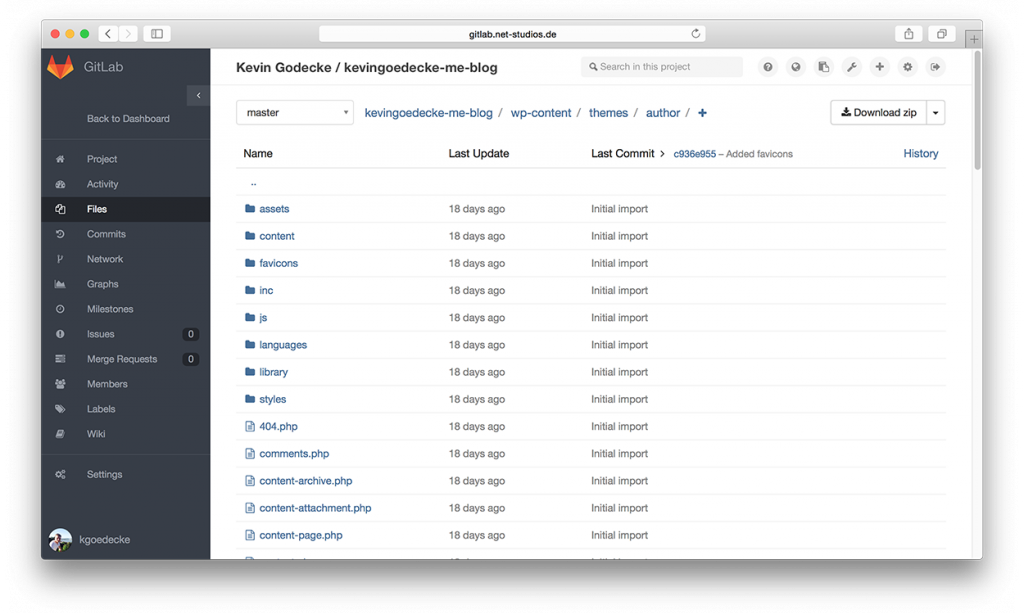
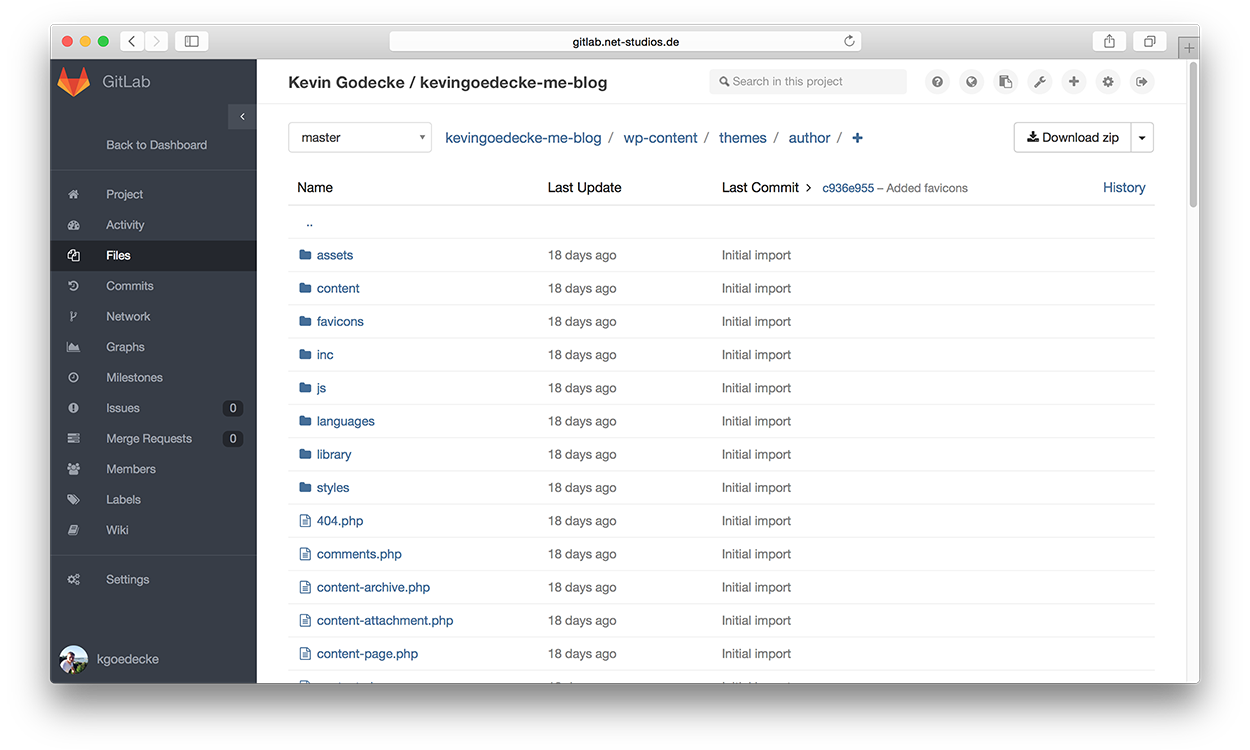
Two days ago I came across GitLab, a complete git repository management suite written in Ruby. The community edition is completely free and totally fine for anything less than 100 users. The web interface looks sick, pure eye-candy 😉
The only problem was, by default GitLab uses an Nginx web server, but I wanted to use it with my existing Apache WebServer, so here’s a little HowTo. The documentation of GitLab is quite good and very helpful, never the less I decided to write this tutorial.
-
HowTo Setup GitLab on Debian 7 with existing Apache Server
Step 1: Installing GitLab
Install required package dependencies:
kgoedecke@my-vps:~$ sudo apt-get install curl openssh-server ca-certificates postfix
Add the GitLab package servers to your servers sources. The guys from GitLab provide a simple script that does the work for you. Simply get it via curl and execute it.
kgoedecke@my-vps:~$ curl https://packages.gitlab.com/install/repositories/gitlab/gitlab-ce/script.deb.sh | sudo bash
Afterwards you can use apt-get to simply install GitLab:
kgoedecke@my-vps:~$ sudo apt-get install gitlab-ce
Now run the configuration and start GitLab:
kgoedecke@my-vps:~$ sudo gitlab-ctl reconfigure
GitLab is now installed and running. All we have to do now, is let our Apache know how to access it.
Step 2: Edit GitLab Config File
Open the GitLab config file with nano in /etc/gitlab/gitlab.rb
kgoedecke@my-vps:~$ sudo nano /etc/gitlab/gitlab.rb
Set the external URL to the URL you want your GitLab to be reached with:
external_url 'http://gitlab.example.com'
Also find the following two commands, uncomment them and set them to the following values:
nginx['enable'] = false
web_server['external_users'] = ['www-data']
Now save the file. Thats pretty much all you need to configure on the GitLab side.
Step 3: Add Apache user to GitLab user group
In order to add the Apache user to the GitLab user group run the following command:
kgoedecke@my-vps:~$ sudo useradd -G gitlab-www www-data
Step 4: Configure Apache to use GitLab
4.1 Create New VirtualHosts file
Go to /etc/apache2/sites-available/ and create a new VirtualHost.
kgoedecke@my-vps:~$ cd /etc/apache2/sites-available/
kgoedecke@my-vps:~$ sudo touch gitlab
kgoedecke@my-vps:~$ sudo nano gitlab
Insert the following code (source: http://stackoverflow.com/questions/25785903/gitlab-7-2-1-with-apache-server-instead-of-nginx)
<VirtualHost *:80>
  ServerName gitlab.example.com
  ServerSignature Off

  ProxyPreserveHost On

  <Location />
    Order deny,allow
    Allow from all

    ProxyPassReverse http://127.0.0.1:8080
    ProxyPassReverse http://gitlab.example.com/
  </Location>

  RewriteEngine on
  RewriteCond %{DOCUMENT_ROOT}/%{REQUEST_FILENAME} !-f
  RewriteRule .* http://127.0.0.1:8080%{REQUEST_URI} [P,QSA]

  # needed for downloading attachments
  DocumentRoot /opt/gitlab/embedded/service/gitlab-rails/public

</VirtualHost>
and replace http://gitlab.example.com/ with the desired domain/subdomain you want your GitLab to be reached by. This configuration tells Apache to redirects all requests to 127.0.0.1:8080, on which the Unicorn server of GitLab is listening to.
Close this file with CRTL + X and Press “Y” to save.
4.2 Enable new VirtualHost
To enable the virtualhosts file run the following command:
kgoedecke@my-vps:~$ sudo a2ensite gitlab
4.3 Enable required Apache mods
Enable all necessary apache mods:
kgoedecke@my-vps:~$ sudo a2enmod proxy
kgoedecke@my-vps:~$ sudo a2enmod proxy_http
Restart your Apache.
kgoedecke@my-vps:~$ sudo service apache2 restart
Now you should be able to access your GitLab web interface.
The default login credentials are:
Username: root
Password: 5iveL!fe
Thanks bro! This helped to find the key things hidden in that massive config file 🙂
Thanks!
Thx for this tuto.
You can also advice to run : ” a2enmod rewrite “
Thanks for the great tutorial – helped me get the last 1%!
A couple of changes I would suggest:
– On my VPS , I had to install apache to be able to get to the
/etc/apache2/sites-available/ folder
– In that folder, the file needs to be gitlab.conf, not just gitlab
– I had to enable the rewrite module
a2enmod rewrite
thank you man!
Recipe Compile Error in /opt/gitlab/embedded/cookbooks/cache/cookbooks/gitlab/recipes/default.rb
Error executing action `run` on resource ‘execute[clear the gitlab-rails cache]’
Why am I getting those errors? :S 🙁 I have followed your nice tutorial from top to bottom 🙂
Thanks
How would you setup ssl using this method?
Thanks m8 😀
Hi =
With Apache 2.4 :
Order deny,allow
Allow from all
To be replace by :
Require all granted
For adding the Apache user to the Gitlab group, your command:
sudo useradd -G gitlab-www www-data
did not work for me (“useradd: user ‘www-data’ already exists”)
Instead, I used the adduser command (which is a higher-level command in contrast to useradd). Note the reversed parameters:
sudo adduser www-data gitlab-www
This worked for me (in case anybody else has the same problem).
Thanks ‘sudo adduser www-data gitlab-www’ worked for me.
Actually, it’s usermod instead of useradd, as you already have that user and group. You just need to add the user to group, like this:
sudo useradd -G gitlab-www www-data
Damn, sorry
sudo usermod -G gitlab-www www-data
Hi,
That works well for me, but assets(css, js) will not load, I receive an error 403. I tried to load asset in browser (https://git.example.com/assets.. .css), the request is:
Forbidden
You don’t have permission to access /assets/ .. .css
I checked that www-data is inside gitlab-www group
Hi,
The article is great and my gitlab works!
but after that, my original virtualhost went wrong. All request goes to gitlab.
Is there any possible reason for that?
I have the same symptoms. http;//gitlab doesn’t work, but for my regular server name I now get the gitlab page.
Is there any solution to this?
P.S. I redirect all calls to the webserver to an https secured connection.
I had the same problem and solved it this way:
I told apache and gitlab that gitlab will run on port 8080 and every other website on port 80.
1. Change gitlab port to 8080 by editing /etc/gitlab/gitlab.rb and add :8080 to the external_url (e.g. replacing “http://localhost” with “http://localhost:8080”).
2. Run sudo gitlab-ctl reconfigure
After that, I can access my websites, but gitlab isn’t working anymore (“missing assets” error). (https://gitlab.com/gitlab-org/gitlab-ce/issues/28021#note_26173582)
3. Solve missing assets error by running sudo npm install in /opt/gitlab/embedded/service/gitlab-rails with latest npm and nodejs installed
After that, I can access gitlab on http://localhost:8080 but every drop-down menu isn’t working. (https://gitlab.com/gitlab-org/gitlab-ce/issues/28759#note_28274029)
4. Solve drop-down menu bug by changing config.serve_static_files from false to true in /opt/gitlab/embedded/service/gitlab-rails/config/environments/production.rb
5. Run sudo gitlab-ctl reconfigure
6. Run sudo gitlab-ctl restart
Hope I could help you! 🙂
Thank you so much
For CentOs 7, step 3 should be
> usermod -a -G gitlab-www apache
Because Apache is run as uid apache and that user already exists.
Cheers Rainer
Hi,
thank you for the great tutorial!
Can anyone tell me, how i can change the port, because on port 8080, tomcat is already running?
I have find the solution.
In gitlab.rb
Change the “external_url”-Entry and add the port to the domain.
and
uncomment the unicorn[‘port’]-property
in /etc/apache2/sites-available/gitlab
change all ports which actual set on 8080
should I set the unicorn port to the wanted port?
What exactly do you mean by Unicorn port?
I’m having problem after following the directions. It looks like a bunch of 403 forbidden errors. I tried doing the nodejs and npm fix as suggested by Malte but that didn’t seam to fix it. anyone else run into these problems trying to get this working and what did they do to fix the 403 errors?
Failed to load resource: the server responded with a status of 403 (Forbidden)
webpack_runtime.42b41f7296ac218b8f13.bundle.js Failed to load resource: the server responded with a status of 403 (Forbidden)
common.6f239be7166c827d3505.bundle.js Failed to load resource: the server responded with a status of 403 (Forbidden)
main.d38da9dc9a9020141727.bundle.js Failed to load resource: the server responded with a status of 403 (Forbidden)
print-74b3d49adeaada27337e759b75a34af7cf3d80051de91d60d40570f5a382e132.css Failed to load resource: the server responded with a status of 403 (Forbidden)
sign_in:1 This page includes a password or credit card input in a non-secure context. A warning has been added to the URL bar. For more information, see https://goo.gl/zmWq3m.
/assets/favicon-075eba76312e8421991a0c1f89a89ee81678bcde72319dd3e8047e2a47cd3a42.ico Failed to load resource: the server responded with a status of 403 (Forbidden)
print-74b3d49adeaada27337e759b75a34af7cf3d80051de91d60d40570f5a382e132.css Failed to load resource: the server responded with a status of 403 (Forbidden)
application-cc0a1f840e71333912a2bf0087f516ff1e7f337dd34db8e1244a57c1e4e46a8c.css Failed to load resource: the server responded with a status of 403 (Forbidden)
solved it with a change to the virtual host:
ServerName git.example.com
ServerSignature Off
DocumentRoot /opt/gitlab/embedded/service/gitlab-rails/public
ProxyPreserveHost On
Require all granted
ProxyPassReverse http://127.0.0.1:8080
ProxyPassReverse http://git.example.com/
RewriteEngine on
RewriteCond %{DOCUMENT_ROOT}/%{REQUEST_FILENAME} !-f
RewriteRule .* http://127.0.0.1:8080%{REQUEST_URI} [P,QSA]
# needed for downloading attachments
DocumentRoot /opt/gitlab/embedded/service/gitlab-rails/public
thanks!
i searched every method to setup gitlab with apache2 but all failed.
only your solution is worked! (and also simple)
Mine apache restarts normally, and the site is loaded, but if I do “sudo systemctl status apache2” I get the information that apache process is inactive (dead), for following reasons:
(98)Address already in use: AH00072: make_sock: could not bind to address [::]:80
(98)Address already in use: AH00072: make_sock: could not bind to address 0.0.0.0:80
Anyone had the same error? I think this might be due to the nginx (it seems it was installed with the gitlab). If I do “sudo lsof -i:80” to check who is listening on port 80 I get two nginx processes (one for root and one for gitlab-www).
Does anyone has an idea how to resolve this error? My configuration is Ubuntu 16.04
Thanks forthe tutorial.
I adapted to make it work on Centos